(Updated September 25, 2025)
Table of Contents
-
Overview
FortiClient Download
Configuring the FortiClient for Skidmore VPN Access
Additional Information
Overview
This document provides information on installing and setting up the FortiClient software to provide VPN access to Skidmore’s Computer Science resources.
You must use the VPN if you’re off-campus. Due to the firewall rules that are in place, most resources are available when using college computers and when using the Skidmore Secure wireless network, but are otherwise restricted.
FortiClient Download
You can download the FortiClient VPN-Only product for your specific platform. Once downloaded, proceed with a standard installation based on your operating system. Due to the number of operating systems, individual installation instructions are beyond the scope of this document.
Configuring the FortiClient for Skidmore VPN Access
After installing the FortiClient VPN, open the program and select Configure VPN.
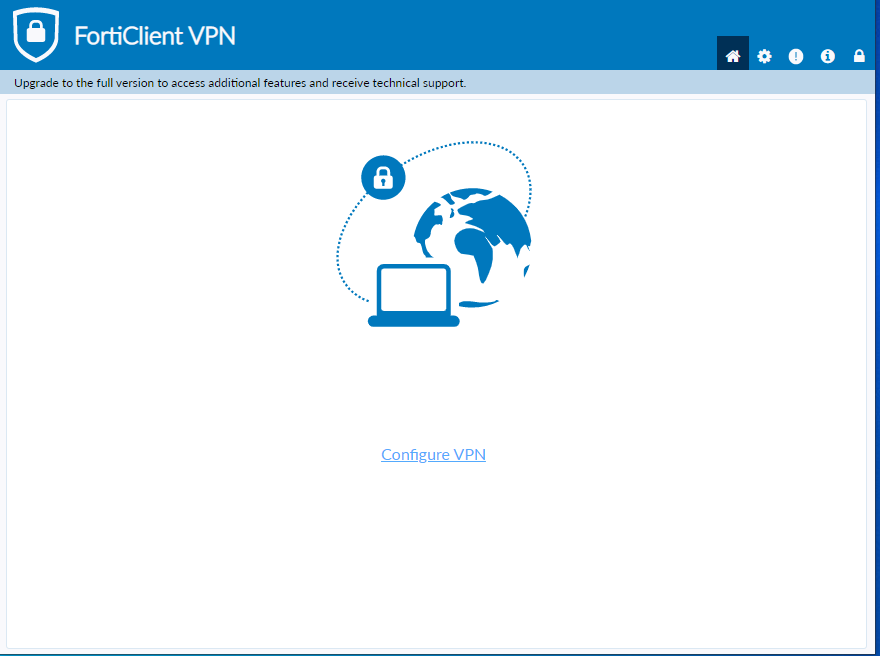
You will then be provided with a form that requires a specific set of values to connect the VPN properly.
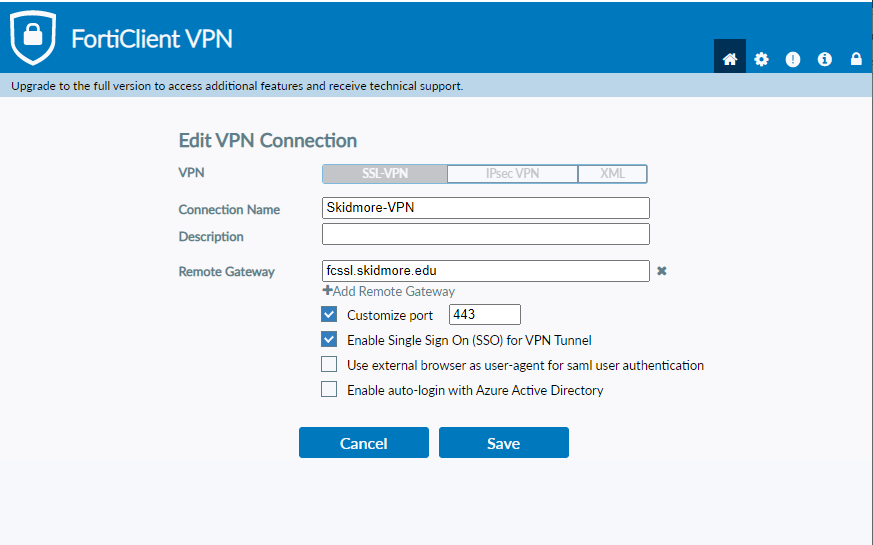
The necessary values are provided below.
- Connection Name – Provide the connection with a name that you will recognize, like Skidmore-VPN.
- Description – Put whatever you like in the description field, or you can leave it blank.
- Remote Gateway – Enter fcssl.skidmore.edu
- Select Customize port, and confirm 443 is in the box.
- Select Enable Single Sign On (SSO) for VPN Tunnel is checked.
- Leave the remaining two boxes unchecked.
- Select Save.
You will then be presented with the connection form.
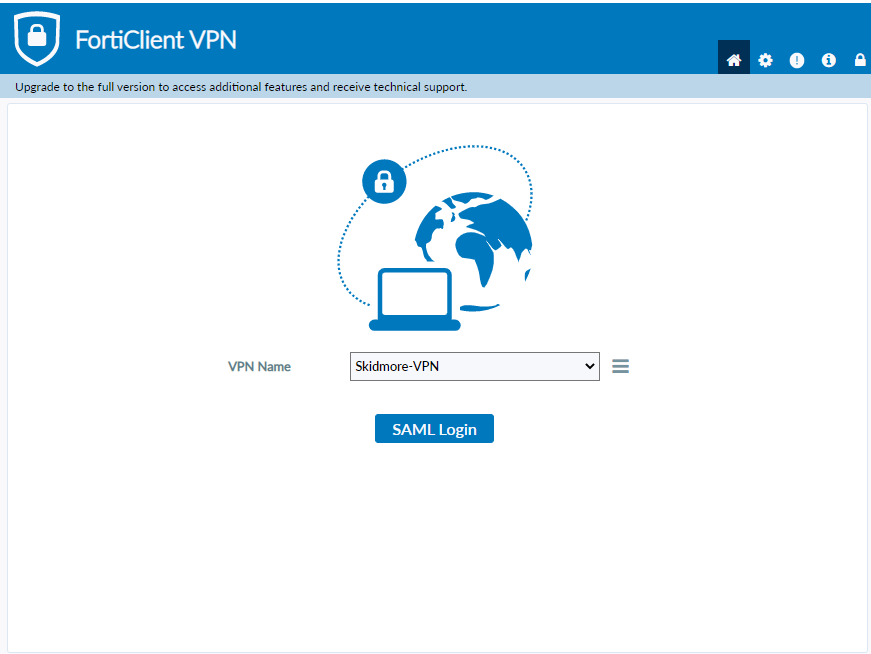
Depending on your version, you may see either Connect or SAML Login. Select the button, and you will be provided with the Okta login. Proceed with logging in with your Skidmore credentials.
Additional Information
The VPN is not a split-tunnel VPN; it is a full-tunnel. This means that you will not have access to streaming services, as these will be blocked. Other services may be affected as well. Use the VPN only when you are remote and need access to Computer Science resources.
(A split-tunnel VPN separates the traffic destined for the remote site, like Skidmore, from all other traffic. Remote site traffic flows over the VPN while the other traffic flows over your Internet Service Provider.)